

When your IPTV streaming service is not functioning as expected, it can be frustrating to identify the root cause. Multiple factors could be affecting your viewing experience, from basic connectivity issues to device-specific problems.
Understanding the relationship between your internet connection, streaming device, and IPTV app is crucial for diagnosing the issue. This comprehensive guide will walk you through the most common IPTV issues and provide practical solutions to get your service back up and running. You can find more information on the best IPTV services on our website at https://www.iptvvuk.com/best-iptv/.
Key Takeaways
- Diagnose common IPTV issues systematically.
- Understand the relationship between your internet, device, and IPTV app.
- Learn step-by-step solutions to resolve IPTV streaming issues.
- Identify whether your issue is related to connectivity or device-specific problems.
- Discover how to troubleshoot IPTV problems without needing technical expertise.
Understanding IPTV and How It Works
With IPTV, you can enjoy a more flexible viewing experience as it streams content directly to your device. IPTV stands for Internet Protocol Television, a service that offers live TV and on-demand content via the internet, eliminating the need for traditional cable or satellite contracts.
What Is IPTV?
IPTV, or Internet Protocol Television, delivers television content over internet protocols rather than through traditional satellite or cable formats. This method provides a more flexible viewing experience, allowing you to watch content on various devices with an internet connection.
Different Types of IPTV Services
There are several types of IPTV services available, catering to different viewing preferences. These include:
- Live TV streaming, similar to traditional broadcasting but delivered via the internet.
- Video-on-demand (VOD) services, allowing you to watch content at your convenience.
- Catch-up TV, enabling you to view recently broadcast programmes.
Most IPTV services require a subscription and a compatible device, such as a smart TV, streaming box, or mobile phone, with the appropriate app installed.
| IPTV Service Type | Description | Device Requirement |
|---|---|---|
| Live TV Streaming | Similar to traditional broadcasting but via internet | Smart TV, Streaming Box |
| Video-on-Demand (VOD) | Watch content at your convenience | Smart TV, Mobile Phone |
| Catch-up TV | View recently broadcast programmes | Streaming Box, Computer |
The quality of your IPTV experience depends on your internet connection speed and stability. For HD streaming, a consistent bandwidth of at least 10-20 Mbps is typically required. IPTV providers vary in their content offerings, with some specializing in international channels, sports packages, or entertainment libraries not available through traditional cable services.
Why Your IPTV Is Not Working: Common Causes
Several common problems can cause your IPTV to malfunction, ranging from internet connectivity issues to device compatibility. Understanding these potential causes is the first step towards resolving the issue.
Internet Connection Problems
A stable and sufficiently fast internet connection is crucial for uninterrupted IPTV streaming. If your connection is slow or unstable, it can lead to buffering, freezing, or lag, particularly during live streams or peak usage times. Ensuring your internet plan meets the minimum speed requirements for IPTV streaming is essential.
ISP Throttling and Restrictions
ISP throttling occurs when your internet service provider deliberately slows down your connection upon detecting streaming activities. This can significantly impact your IPTV service quality, especially during peak hours. Many ISPs also implement restrictions on streaming services to manage network congestion, which can result in sudden disconnections or reduced quality.
To mitigate ISP throttling, consider using a reputable IPTV provider that offers guidance on bypassing such restrictions.
Server and Provider Issues
Sometimes, the issue lies not with your equipment or internet connection but with the IPTV provider’s servers. Server issues can cause widespread outages, affecting all users. This can manifest as authentication problems, missing channels, or complete service unavailability. In such cases, contacting your IPTV provider’s support team is the best course of action.
Device Compatibility Problems
Device compatibility is another critical factor. If your streaming device lacks the necessary specifications or software to run your IPTV application properly, it can result in crashes, freezing, or an inability to load content. Ensuring your device meets the IPTV service’s minimum requirements is vital.
| Common IPTV Issues | Causes | Solutions |
|---|---|---|
| Buffering/Freezing | Internet Connection Problems, ISP Throttling | Check internet speed, consider upgrading your plan |
| Service Unavailability | Server and Provider Issues | Contact IPTV provider’s support |
| Crashes/Inability to Load Content | Device Compatibility Problems | Check device specifications, update software |

Network-Related Solutions
To enjoy seamless IPTV streaming, it’s essential to have a robust and reliable network connection. Issues with your internet can often be the culprit behind IPTV malfunctions.
Checking and Improving Your Internet Speed
The first step in resolving network-related IPTV issues is to check your internet speed using reliable testing tools like Speedtest.net or Fast.com. Ensure your connection meets the minimum requirements for streaming: at least 10 Mbps for HD content and 25 Mbps for 4K.
- Use online speed testing tools to determine your internet speed.
- Compare your speed against the minimum requirements for your IPTV service.
Switching from Wi-Fi to Ethernet Connection
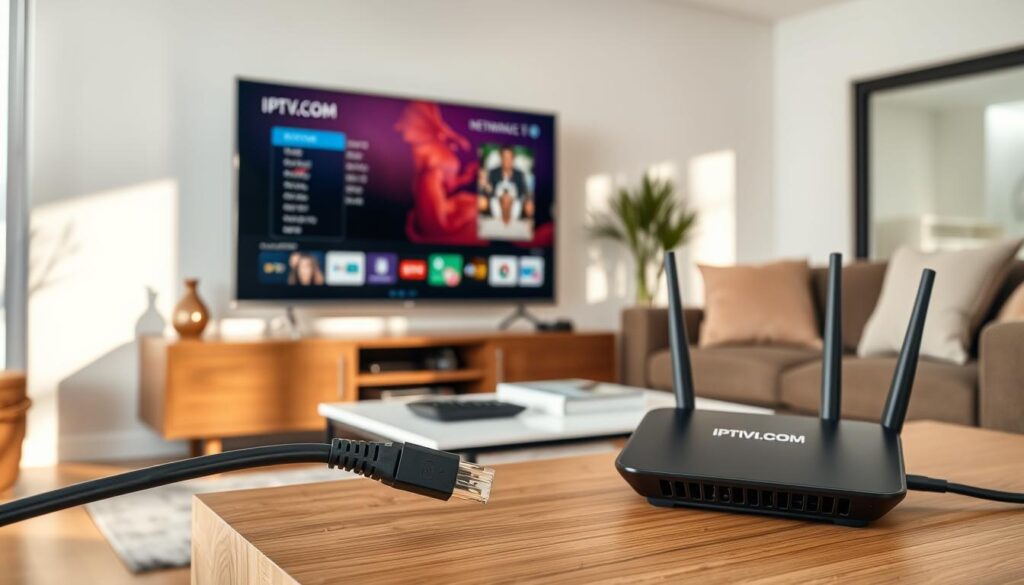
Wi-Fi connections can be unstable, especially on older routers or in areas with signal interference. Switching to a wired Ethernet connection can provide a direct and stable link to your router, minimizing packet loss and latency.
Restarting Your Router and Modem
Sometimes, buffering is caused by temporary glitches in your modem or router. Restarting these devices can clear the cache, refresh IP addresses, and resolve minor issues that impact streaming quality. Simply unplug them for at least 30 seconds before reconnecting.
Upgrading Your Router for Better Performance
Older routers may struggle to handle the demands of modern streaming. Upgrading to a newer model with better specifications, such as dual-band or tri-band capabilities, MU-MIMO technology, and QoS features, can substantially improve your IPTV streaming performance.
| Router Feature | Benefit for IPTV Streaming |
|---|---|
| Dual-band/Tri-band | Reduces interference and improves overall network performance. |
| MU-MIMO Technology | Enhances the router’s ability to handle multiple devices simultaneously. |
| QoS Features | Allows prioritization of streaming traffic for smoother IPTV playback. |
Device and App Troubleshooting
Troubleshooting your IPTV device and app can resolve many common issues that prevent a smooth viewing experience. When your IPTV service isn’t working as expected, a few simple steps can often get you back to streaming your favourite content.
Clearing Cache and App Data
Over time, IPTV apps can accumulate cached data, which may slow down performance or cause playback errors. Clearing the app cache regularly can improve responsiveness and prevent crashes or loading delays. On Android devices, you can do this by going to App Settings > IPTV App > Storage > Clear Cache. For FireStick, navigate to Settings > Applications > Manage Installed Applications > IPTV App > Clear Cache.
Accumulated cache data can cause performance issues, including slow loading times, freezing, and unexpected crashes. Regularly clearing the cache can resolve these problems.
Updating Your IPTV App and Firmware
Outdated IPTV apps often develop compatibility issues or bugs that can prevent proper functioning. Ensuring your app is updated to the latest version is crucial for maintaining optimal performance and accessing the most recent features and fixes. You can check for updates in your device’s app store. Additionally, device firmware updates can resolve system-level issues affecting all apps, improve security, and enhance overall device performance, potentially fixing IPTV streaming problems in the process. For more information on troubleshooting IPTV issues, you can refer to this IPTV Troubleshooting Guide.
Trying Alternative IPTV Players
If your primary IPTV app continues to have issues, trying alternative IPTV players like VLC, MX Player, or Kodi can help determine whether the problem lies with the app itself or with your service or device. You can find more information on the best IPTV players and their features in this guide to IPTV players.
Restarting Your Streaming Device
Sometimes the simplest solution is the most effective: performing a complete restart of your streaming device (not just putting it to sleep) can clear temporary memory issues and resolve many common IPTV streaming problems. This can be done by shutting down the device completely and then turning it back on.
Using a VPN to Solve IPTV Issues
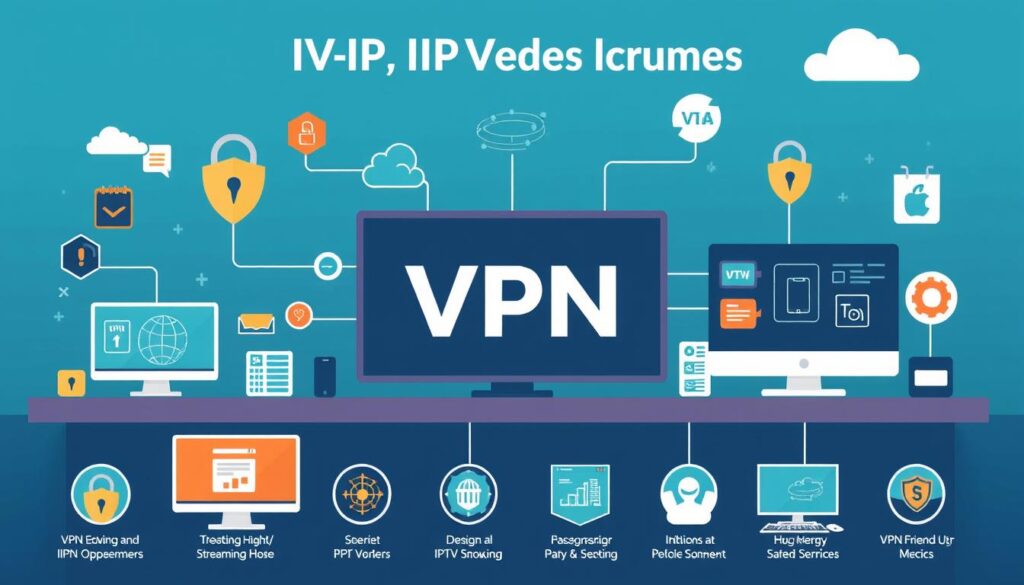
A VPN can significantly enhance your IPTV experience by addressing common issues such as buffering and geo-restrictions.
How VPNs Prevent ISP Throttling
One of the primary reasons IPTV buffering occurs is due to ISP throttling. Many internet service providers monitor your internet traffic and deliberately slow down high-bandwidth activities like streaming. By using a VPN, your internet traffic is encrypted, making it difficult for your ISP to identify and throttle your IPTV usage. This results in a smoother streaming experience.
Bypassing Geo-Restrictions with a VPN
Geo-restrictions can limit access to certain IPTV channels or services when you’re travelling abroad. A VPN allows you to bypass these restrictions by connecting through servers in different countries, thus granting you access to region-locked content. This is particularly useful for expatriates or travellers who wish to access their home country’s IPTV services.
Choosing the Right VPN Protocol for Streaming
Not all VPN protocols are created equal when it comes to streaming. Protocols like WireGuard and OpenVPN UDP offer the best balance of speed and security for IPTV streaming. While older protocols like PPTP may be faster, they are less secure. Choosing the right protocol is crucial for maintaining high-quality IPTV streams.
Setting Up a VPN on Different Devices
The process of setting up a VPN varies across different devices. On smartphones and computers, you can typically install a VPN app and connect with a single tap. For streaming devices like Fire TV Stick, you’ll need to install the VPN app from the app store. For smart TVs without app stores, configuring the VPN on your router might be necessary. For more detailed instructions, you can refer to guides like this article on fixing IPTV buffering with VPN settings.
Advanced Troubleshooting for Specific IPTV Problems
To get your IPTV working smoothly, you may need to apply some advanced troubleshooting methods. IPTV users often encounter issues such as buffering, missing channels, authentication errors, and playback quality problems. Addressing these issues requires a nuanced understanding of your IPTV service and the tools available to you.
Fixing Buffering and Freezing Issues
Persistent buffering and freezing issues often indicate bandwidth limitations. Reducing the streaming quality in your IPTV app settings from 4K to 1080p or 720p during peak usage times can help alleviate these issues. For specific channels that consistently buffer, the problem may lie with that particular stream from your IPTV service provider. You can check their status page or contact them to confirm if others are experiencing the same problem. Troubleshooting common IPTV issues can provide more insights.
Resolving Missing Channels or Content
Missing channels or content can occur due to expired playlists, regional restrictions, or changes in your IPTV service’s offerings. Refreshing your playlist, checking for service announcements, or contacting your provider can help resolve these issues. It’s also worth checking if your subscription includes the content you’re trying to access.
| Issue | Possible Cause | Solution |
|---|---|---|
| Missing Channels | Expired Playlists | Refresh Playlist |
| Regional Restrictions | Content not available in your region | Check service announcements or use a VPN |
Dealing with Authentication Errors
Authentication errors typically indicate account-related problems such as expired subscriptions, incorrect login credentials, or too many simultaneous connections. Verifying your account status and ensuring you’re within your subscription limits can resolve these issues. Check your IPTV service provider’s website for any notifications regarding your account status.
“Authentication errors are often a sign of account issues. Ensuring your subscription is active and you’re not exceeding the allowed number of connections can resolve these errors.”
Troubleshooting Playback Quality Problems
Playback quality problems like pixelation, audio sync issues, or low resolution often stem from either bandwidth limitations or encoding problems with specific streams. Trying alternative streams of the same content or adjusting video decoder settings can help. For advanced users, adjusting buffer settings in compatible IPTV players can also improve streaming stability.
For more detailed troubleshooting guides, you can visit IPTV troubleshooting resources.
Conclusion: Maintaining a Reliable IPTV Experience
Ensuring a reliable IPTV experience involves a proactive approach to both network setup and device maintenance. To achieve this, regularly updating your IPTV app is crucial as it ensures you benefit from bug fixes and performance improvements. Investing in quality hardware, such as a reliable router and compatible streaming devices, provides the foundation for consistent IPTV performance. Using a reputable VPN service can also provide long-term benefits by preventing ISP throttling and bypassing regional restrictions.
Additionally, maintaining a reliable IPTV experience requires periodic reviews of your service provider options and implementing proper security practices, such as using a VPN to encrypt your data. By adopting these strategies, you can enjoy a seamless streaming experience, watching your favourite live TV or on-demand movies without interruptions.