

IPTV has revolutionised the way we consume television content, offering global access to live channels, movies, and series directly on your PC. With the rise of digital media, streaming services have become increasingly popular, and IPTV is at the forefront of this change.
VLC Media Player stands out as a versatile and user-friendly application for streaming IPTV content. This comprehensive guide will walk you through setting up and optimising IPTV on VLC, from installation to troubleshooting common issues, ensuring a seamless viewing experience.
By understanding the basics of IPTV technology and using VLC Media Player, you’ll be able to enjoy your favourite content without the need for technical expertise.
Key Takeaways
- Learn how to stream IPTV using VLC Media Player with ease.
- Understand the benefits of using VLC for IPTV streaming.
- Discover how to set up and optimise IPTV on VLC.
- Troubleshoot common issues with IPTV streaming on VLC.
- Enjoy a seamless IPTV viewing experience with VLC Media Player.
Understanding IPTV and Its Benefits
IPTV technology has revolutionized the way we consume television, offering a flexible alternative to traditional broadcasting methods. IPTV stands out for its flexibility, allowing you to watch content anytime, anywhere, as long as you have a stable internet connection.
What is IPTV?
IPTV, or Internet Protocol Television, delivers television channels and content via the internet, using M3U files or URLs from providers. This method allows for a more personalized viewing experience, as you can choose what you want to watch and when.
Advantages of IPTV Over Traditional TV
IPTV offers several advantages over traditional TV. You can enjoy your favourite channels on multiple devices, including computers, smartphones, and smart TVs, giving you greater access to your preferred content. The benefits include:
- Watching on-demand content at a time that suits you
- Access to extensive content libraries, including live TV, movies, and sports events
- The ability to pause, rewind, and record live television, enhancing your viewing experience
- No need for satellite dishes or complex cable installations
| Feature | IPTV | Traditional TV |
|---|---|---|
| Device Compatibility | Multiple devices, including smartphones and smart TVs | Limited to TV and specific devices |
| Content Availability | On-demand content and live TV | Fixed schedules |
| Installation Requirements | Internet connection required | Satellite dish or cable installation |
Why Choose VLC Media Player for IPTV
Among various media players, VLC Media Player is particularly well-suited for IPTV due to its robust capabilities. Its popularity stems from several key advantages that enhance the IPTV viewing experience.
Free and Open-Source Advantages
VLC Media Player is free to download and use, making it an attractive option for IPTV streaming. Being open-source, it benefits from community-driven development, ensuring it stays updated with the latest features and security patches.
Cross-Platform Compatibility
VLC is available on multiple platforms, including Windows, macOS, Linux, Android, and iOS. This cross-platform compatibility allows users to enjoy IPTV on various devices, providing flexibility and convenience.
Format Support and Versatility
VLC’s versatility is a significant advantage, supporting a wide range of audio and video formats without needing additional codecs. Key benefits include:
- Support for virtually all video and audio formats.
- Ability to handle damaged or incomplete media files.
- Streaming capabilities from various sources, including network streams.
- Built-in support for subtitles, multiple audio tracks, and playback speeds.
- Extensive customisation options and media conversion capabilities.
- Support for encrypted DVDs and BluRay discs.
These features make VLC Media Player an ideal choice for IPTV streaming, offering a comprehensive and flexible viewing experience.
Setting Up IPTV on VLC Media Player
You can easily set up IPTV on VLC Media Player by following the steps outlined below. This process involves downloading and installing VLC, obtaining an IPTV subscription, and configuring the IPTV channels within the player.
Download and Install VLC
To begin, you need to download and install VLC Media Player. You can do this by visiting the official VLC website and following the download instructions for your operating system.
Obtaining an IPTV Subscription
Next, you’ll need to obtain an IPTV subscription from a reputable service provider. This will give you access to a wide range of channels and content.
Adding IPTV Channels to VLC
Once you have VLC installed and an IPTV subscription, you can add IPTV channels to VLC by opening the network stream and entering your M3U URL.
Opening Network Stream
To add IPTV channels, start by opening VLC and navigating to the “Open Network Stream” option. This will allow you to enter the M3U URL provided by your IPTV service.
Entering the M3U URL
Enter the M3U URL you received from your IPTV provider into the network stream dialog box. This URL contains the playlist of channels you can access.
Navigating Your Channel Playlist
After entering the M3U URL and clicking “Play,” VLC will load your IPTV channel list. You can then browse through the channels using the playlist on VLC’s right panel. To access the full list, press Ctrl+L on your keyboard.
- Once your M3U playlist is loaded, you can access the full channel list by pressing Ctrl+L on your keyboard or by clicking on the “Playlist” button in the VLC interface.
- The playlist view displays all available channels categorised according to the structure provided by your IPTV service.
- You can navigate through the channel list using the scroll bar or search for specific channels using the search function at the top of the playlist panel.
Optimising VLC for Better IPTV Streaming
Optimising VLC for IPTV streaming can significantly enhance your viewing experience. To achieve this, you need to adjust a few key settings within the player.
Adjusting Network Caching Settings
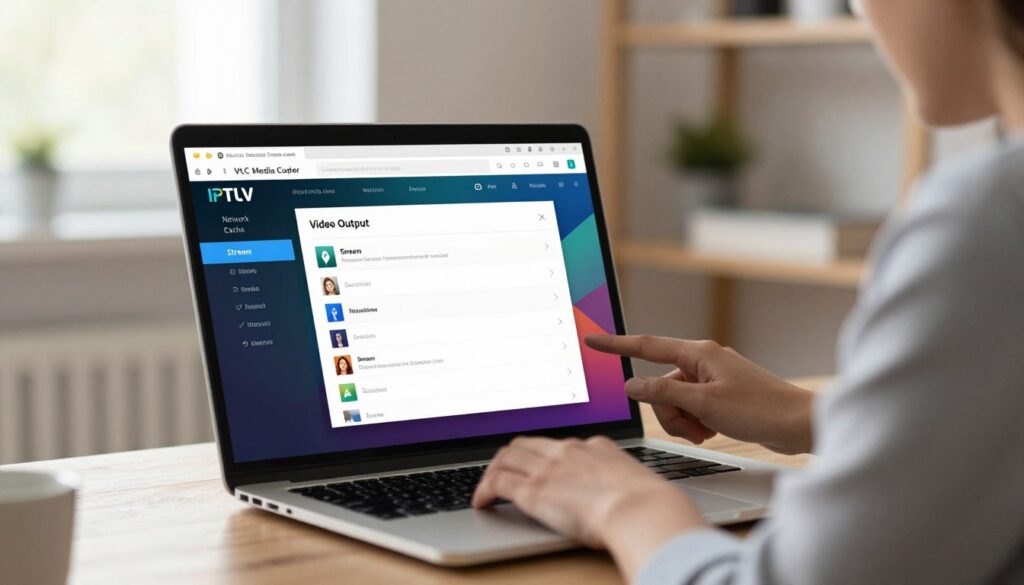
Network caching settings in VLC can help reduce buffering issues and improve playback smoothness. To adjust these settings, navigate to “Tools” > “Preferences” > “Input/Codecs” and modify the caching values according to your network’s capabilities.
Hardware Acceleration Options
Enabling hardware acceleration in VLC can significantly improve playback performance, especially for high-definition IPTV streams. To enable this feature, go to “Tools” > “Preferences” > “Input & Codecs” and select your preferred acceleration method from the dropdown menu. Different systems support different acceleration methods, such as DirectX VA, DXVA, and OpenGL. You may need to experiment to find the best option for your system. For users with older computers, hardware acceleration can make a significant difference in playback performance. You can learn more about IPTV subscriptions and how they work on our related article: IPTV Subscription 2025: The Complete Cord-Cutting.
Troubleshooting Common IPTV VLC Media Player Issues
Despite its reliability, VLC Media Player can have issues with IPTV playback that need to be addressed. When streaming IPTV with VLC, you might encounter problems such as buffering, playback issues, or channel loading failures.
Buffering and Playback Problems
Buffering and playback issues can often be resolved by adjusting your network caching settings or enabling hardware acceleration. For more detailed steps, you can refer to guides on fixing video stuck or freezing in.
Channel Loading Failures
Channel loading failures can be due to several reasons, including an outdated or incorrect M3U playlist URL. Ensure your M3U link is current and correctly entered. If your IPTV list is too big, VLC might struggle to load all channels. Consider simplifying your playlist by reducing the number of countries or removing video-on-demand sections.
As noted by experts, “Simplifying your IPTV playlist can significantly improve VLC’s performance.” You can also try checking the M3U file in a text editor to verify if it contains valid stream URLs. For further assistance, guides on fixing VLC Media Player problems can be helpful.
Conclusion
Unlock a world of entertainment with VLC Media Player, your gateway to thousands of IPTV channels and on-demand content. By following this guide, you can transform your PC into a comprehensive media centre, accessing live TV, sports, movies, and series with ease.
For more information on enhancing your entertainment experience, you can explore other IPTV players available for PC, further expanding your viewing options.